
Client portal: review and sign your return
When your tax return is ready, you review it and sign your e-file authorization (Form 8879) in our secure client portal. You only use the portal for this. Your forms are still signed on our website, and your documents still go through the upload link we text you.
Rather sign in person?
You don't have to use the portal. Call or text Laurencio at 915 525 5521 to set a time, and sign at our office on our signature pad. Please bring your photo ID.
Before you start
- Use the same email you gave us on your forms. That's how the portal knows it's you.
- Use Google Chrome if you can, on your phone or computer.
- Never text or email anyone your password, not even us.
Create your account
- When your return is almost ready, you'll get an invitation email from Jr's Notary, sent by [email protected]. If you don't see it, check your spam or junk folder, or the “Other” tab.
- Tap the blue Accept Invitation button in the email. A Setup Account Password screen opens.
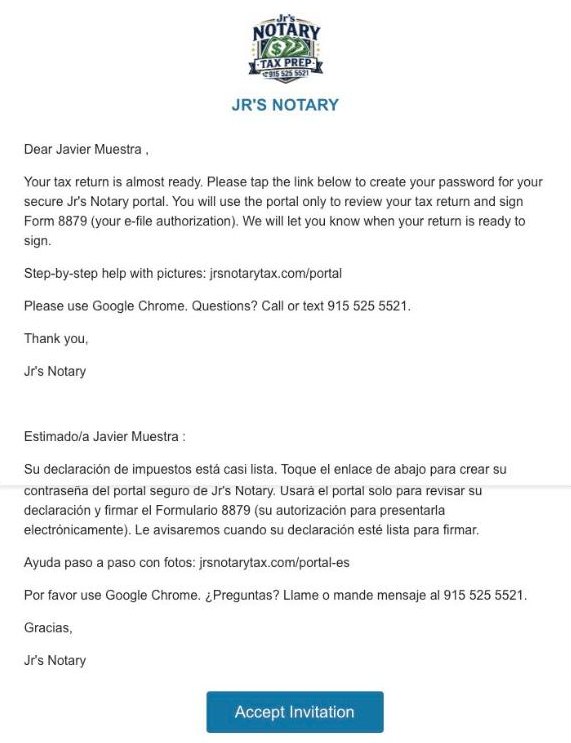
The invitation email. Tap Accept Invitation. - Your email is already filled in. Create a password with at least 8 characters, including a capital letter, a lowercase letter, a number and a special character (like ! or #), and type it again under Confirm Password. Check that your cell phone number is right.
- Check the box that lets the portal send you text messages (you can reply STOP anytime), then tap Accept Invitation. Your account is ready and your home page opens. If a “MyTAXPortal Update” message pops up, just tap OK.

The Set up Account Password screen. - On a phone: tap Add MyTAXPortal to Home Screen at the bottom of the screen. You'll get an app icon so it's easy to come back.
Please wait for our invitation
Don't use Create an account on the login page. That starts a long questionnaire you don't need, because you already filled out our forms. Just use the link in the email we send you.
Log in later
- Go to jrsnotary.mytaxportal.online or tap the app icon on your phone.
- Type your email and password, then tap Log In.
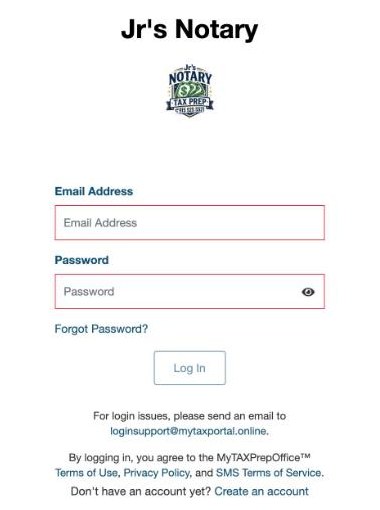
The login page. Use the email you gave us on your forms.
Forgot your password?
Tap Forgot Password?, type your email and tap Submit. Open the email you receive and tap Reset Password.
Review your return and sign Form 8879
- We'll let you know when your return is ready to sign. Log in: the Review Return / Remote Signature button will have a red number on it. Tap it. (You can also use the menu ☰ at the top left.) You don't need the other buttons, like Engagement Letter or Questions, because you already filled out our forms. If you open one, it will be empty. Just tap Home at the top to go back.
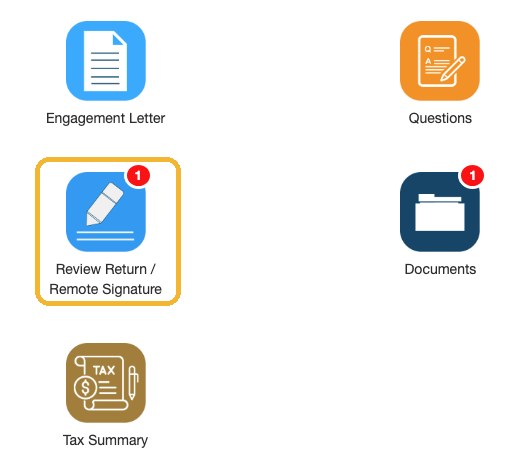
When your return is ready, Review Return / Remote Signature shows a red number. Tap it. 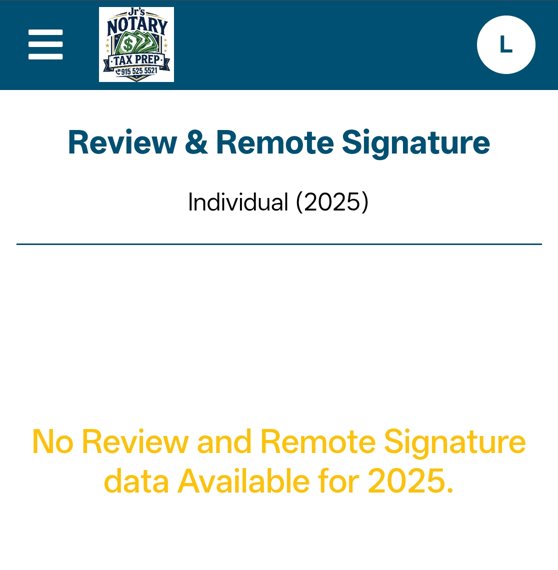
If you see “No Review and Remote Signature data available”, your return isn't ready to sign yet. We'll let you know when it is. - Tap the eye next to your name to open your return (it may download to your phone or computer). Review it carefully: names, Social Security numbers, dependents, bank account numbers and your refund or amount due.
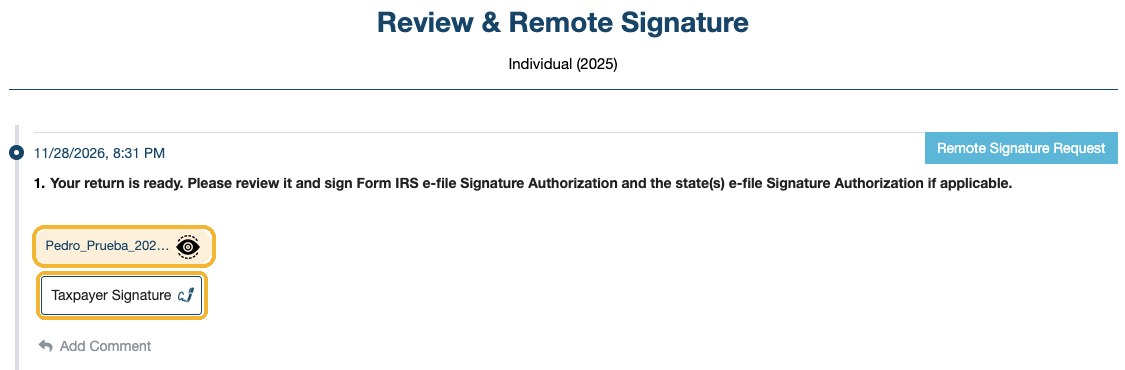
Tap the eye to open your return. When you're ready, tap Taxpayer Signature. - Something looks wrong, or you have a question? Tap Add Comment to tell us, or call or text us before you sign.
- When everything looks right, tap Taxpayer Signature. The Capture Signature screen shows 3 steps and the form you'll sign (Form 8879). Tap Next.
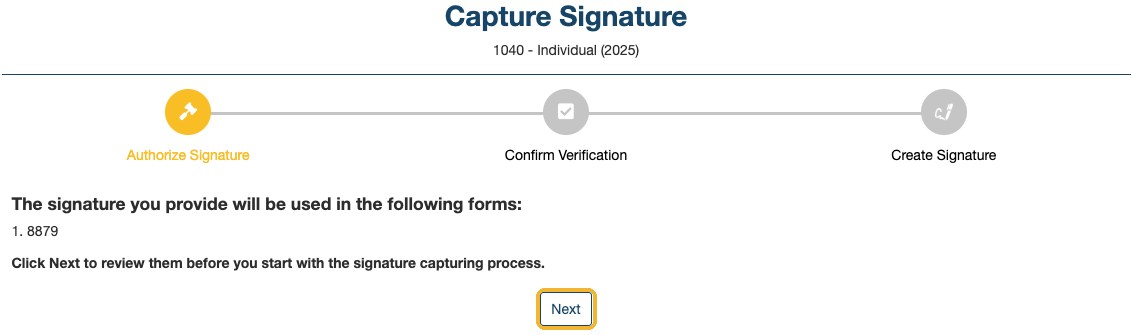
Capture Signature: your signature goes on Form 8879. Tap Next. - Your Form 8879 opens. Read it, check the box that says you examined your return and it is true, correct and complete, then tap Next.
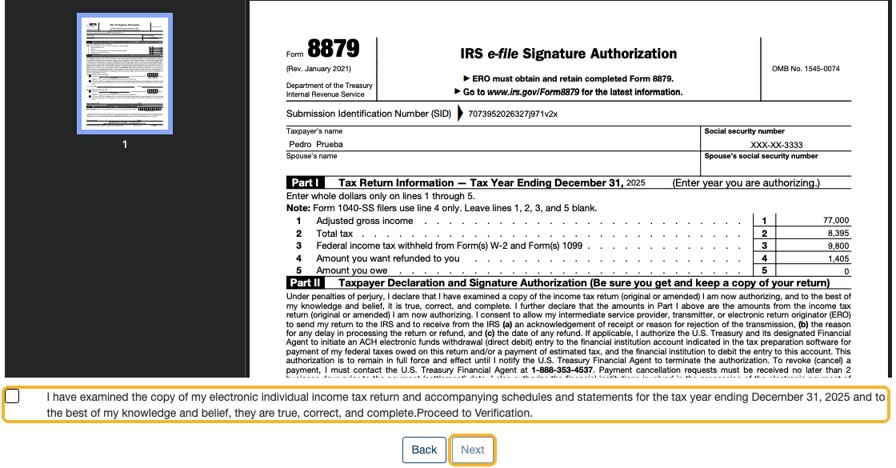
Your Form 8879. Check the box at the bottom, then tap Next. - A screen shows your name, address, Social Security number and email. Make sure they're right and tap Verify. Then answer the identity questions: about 8 multiple-choice questions about your past (addresses, area codes, ZIP codes, people you know). Pick one answer for each, or None of the above, then tap Next. The IRS requires this to protect you from identity theft. It is not a credit check.

Check your information and tap Verify. 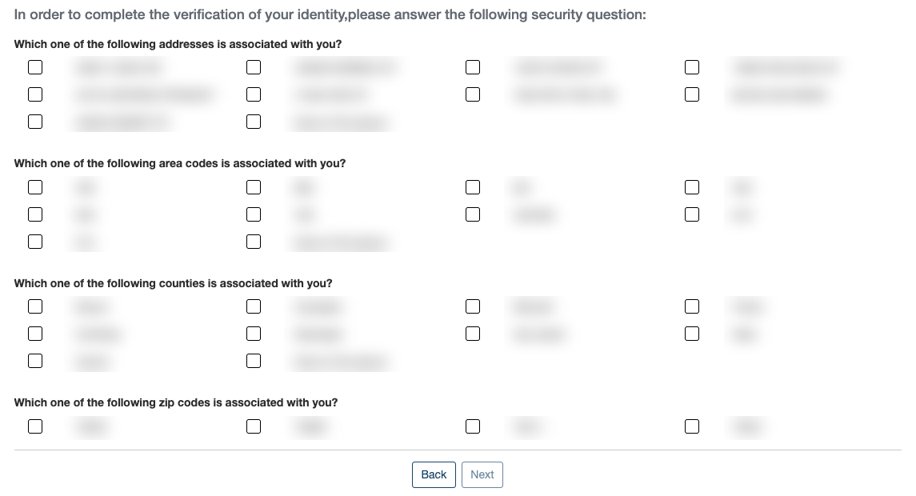
The identity questions (answers hidden in this picture). - Sign within 15 minutes: tap Draw Signature and sign with your finger, or tap Type Signature to type your name. Check the box “I authorize the ERO… to use my electronically captured signature”, then tap Submit. You're done! Your signature now shows under Taxpayer Signature, and on your home page the red number on Review Return / Remote Signature goes to 0. You don't need to enter a PIN.
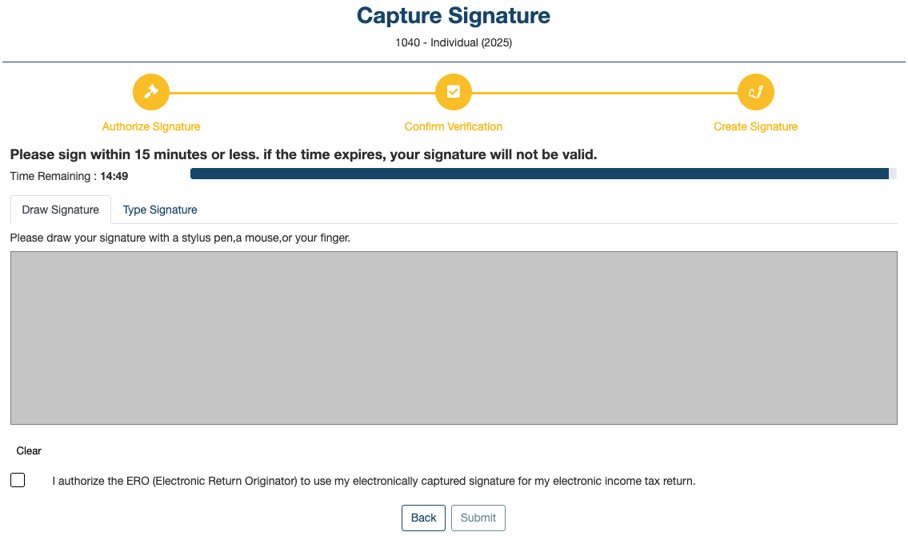
Draw or type your signature, check the box, and tap Submit. 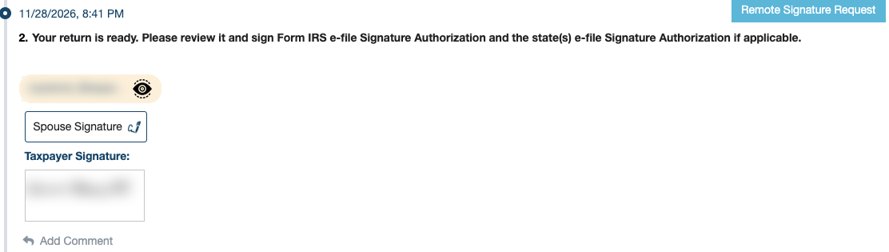
Done: your signature shows under Taxpayer Signature.
Married filing jointly? Your spouse signs too: on the same screen, they tap Spouse Signature and go through the same steps, with their own identity questions.
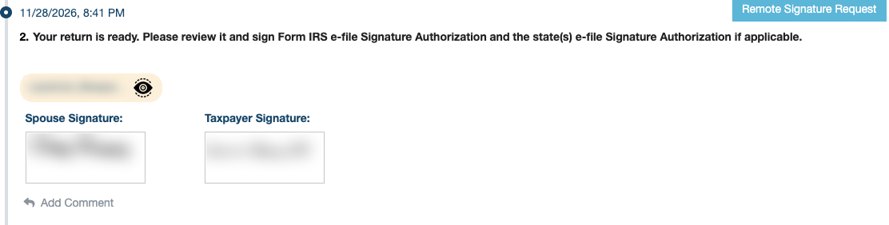
Can't get past the identity questions? If it doesn't work, don't worry. Call or text us and we'll help you sign another way.
Need help?
Call or text 915 525 5521 or email [email protected]. We'll walk you through it.